
installation and activation Android
Follow these steps to install and activate your Fulldatos eSIM.
Before you travel (installation)
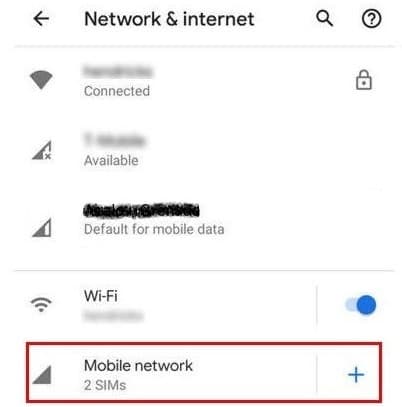
Open Settings on your mobile device
In Settings, find and select the Network & Internet menu or something similar; depending on the device it may be under 'Connections' or 'Wireless & Networks'. Then go to Mobile Network.
Find the menu to manage your SIMs
Look for an option like SIM Manager, 'SIM Cards', 'SIM & Networks' or 'Mobile Plans', and select it.
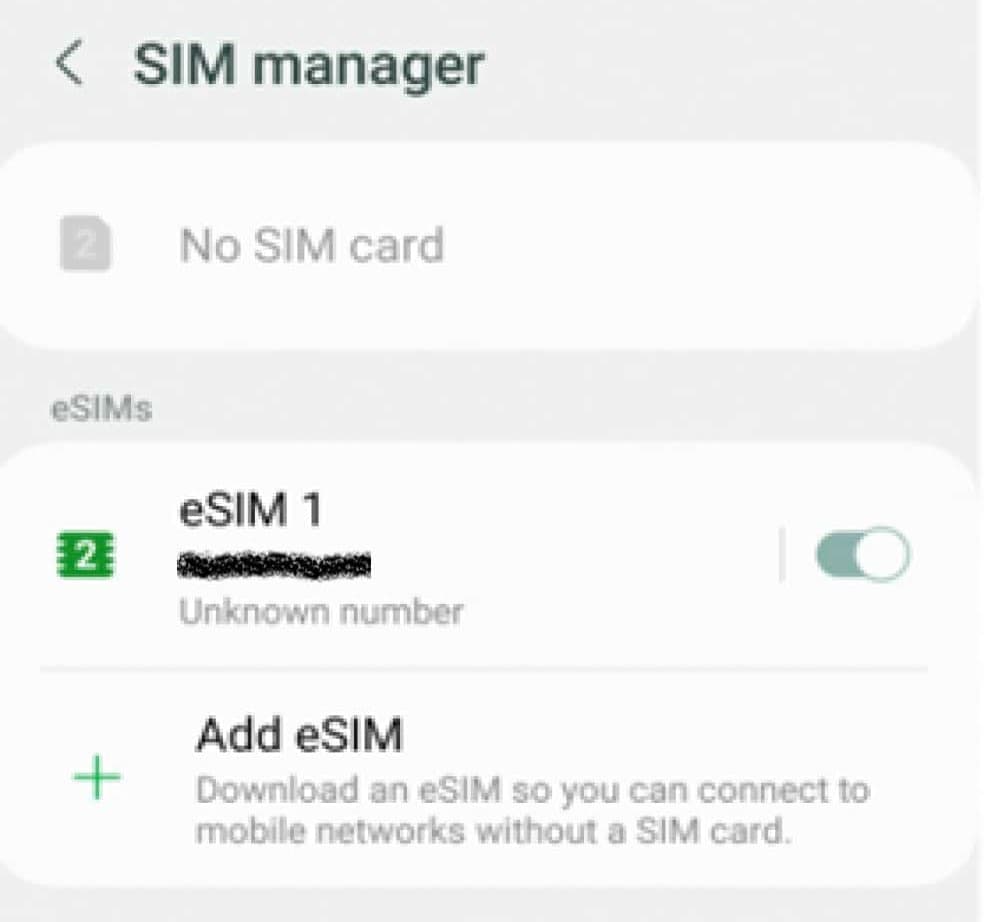
Add an eSIM profile
Depending on your device, you may find an option like Add Mobile Plan or Add eSIM. Select this option.
Follow the on-screen instructions
If it asks you to assign calls and messages, assign them to your primary SIM. Only assign mobile data to the Fulldatos eSIM.
Turn off the eSIM before you travel
If you're not travelling yet, we recommend deactivating the eSIM and activating it when you arrive. To turn it on or off, go to the menu where you added it, select the eSIM, and find the button to enable or disable it.
When you arrive at your destination (activation)
When you arrive at your destination
Turn off your primary SIM to avoid unwanted charges from your local provider and turn on the Fulldatos eSIM.
Enable Data Roaming
Make sure data roaming is turned on. You can find this option in the eSIM menu or in the 'Mobile Networks'/'Mobile Plans' menu. If you can't find it, use the settings search to find Roaming.
When your trip ends
Re-enable your primary SIM, then you can deactivate or remove the Fulldatos eSIM. We recommend that you don't remove it, so you can top it up for your next trip and avoid installing a new one.
Top-ups and usage
Check the following link to monitor your usage and generate top-ups for your eSIM.
Can I use an eSIM?
Compatible phones
Tap your phone's brand to see the models compatible with eSIMs.